Using Time Machine to Migrate from PowerPC to Intel

I ran a very interesting experiment last night… and I didn’t even mean to do it.

As you probably know by now, my PowerMac G5 died last Friday.  (Apple *still* hasn’t figured out why).  In any case, the new Mac Pro arrived yesterday, and it was my first opportunity to really put Time Machine to the only test that counts – restore.

When I booted the Mac Pro for the first time, it asked if I wanted to restore the machine from a Time Machine backup.  I said yes, without thinking, because it seemed like an obvious way to get back up and running as soon as possible.

It took about 3+ hours to restore over 200GB, but after the long install, I had my computer largely working as I left it.  The last Time Machine backup was literally maybe 37 minutes before the final crash, and everything was restored.  Documents I expected.   Applications I expected.  Then I noticed it also migrated System & Library files… uh oh.

The Mac Pro is Intel-based.  The PowerMac is PowerPC-based.  I suddenly became very aware of the problems that I might have caused.

I was able to easily walk through my applications one by one to check whether they were Universal or PowerPC.  Most were already Universal, but a few were PowerPC, like older versions of Acrobat Reader, Stuffit Expander, and some video applications.  I deleted them, and downloaded new Intel versions… likely a good housecleaning anyway.  (I even found a few Mac OS Classic applications in there!)

Unfortunately, the world of extensions and bundles loaded by Mac OS X was a little mysterious to me, especially with regard to things like control panels, menu extensions, background services, etc.  I was worried I would need to do a clean install to fix everything.  Of course, the system seems fine, but I was worried nonetheless.

Well, I have good news.

It looks like there are limitations to the Mac OS X Rosetta technology that prevent Intel-based applications from loading PowerPC bundles.  As a result, most extensions, etc that are not Universal won’t load.  Harmless.

I also found a great tip on Mac OS X Hints, which I wanted to share here.  You can use the Activity Monitor application to tell which processes are running PowerPC or Intel.  Here is how you do it:

  1. Launch Activity Monitor.  It’s in your Utilities folder, which is in Applications.
  2. Right-click on the title of the table, and check off “Kind”
  3. You will now have a column that says “PowerPC” or “Intel”

The good news for me tonight is that only two processes running are PowerPC:  Quicken 2007 (which I guess I need to replace), and the Disk Warrior Hard Drive Daemon (likely an upgrade issue).

In fact, the only bad news I’ve gotten so far on the migration is that the TWAIN driver for my scanner, an Epson Perfection 1660 Photo is PowerPC only, so it requires me to set Adobe Photoshop CS3 to Rosetta-mode.  Hello, Epson, I upgraded to CS3 specifically so it could run natively on Intel…

I’ll likely be hitting people up for suggestions on either native drivers, or a new photo scanner pretty soon.

Slowly But Surely… Resurrecting My Home Machine

Definitely not at full strength, but slowly resurrecting my home workstation from the catastrophic failure of my PowerMac G5 last Friday.

Tonight I got a brand new (OK, well, refurbished) 2.8Ghz 8-core Mac Pro from the Apple Store.  I managed to use Time Machine to resurrect the boot drive from my G5 onto it, which seems to have worked well so far.  I’m a little nervous though about how many PPC items might have been moved/executing as system extensions, etc, on the new Intel-based Mac Pro.

I also decided to go wireless with this machine on the Keyboard & Mouse.  The keyboard is fine, but the bluetooth mighty mouse is a little… off.  Not sure what it is, but I’m debating going back to my USB Logitech.

In any case, I likely won’t get a lot of blog posts in this week, but a few may crop up here and there.  I’m excited to put the new machine through its paces, but that’ll have to wait until I get my photo library back online, install Photoshop CS3, and start ripping movies again.  I hear that this machine can rip a 2-hour movie to MP4 in about 40 minutes, which would be approximately 10x faster than my old G5.

BTW Despite promises from the Apple Store on Saturday that they would run diagnostics and tell me the problem with my G5 by Monday, I had to call them today (Wednesday) just to find out that they still can’t get it to boot.  They think it is the power supply, which is good news because that means $300 could net me a machine that will sell for $1200.  If it’s the logic board, then I’m hosed, and I’ll likely sell the box, sans hard drives, on eBay for parts.

In any case, I’ll post at the end of this ordeal about the Mac Pro and the transition, and what is better/worse about the new setup.  I have to say, I haven’t been this excited since… I got the PowerMac G5 4 years ago.

Ron Moore Confirms the Obvious: NBC Decision to Pull from iTunes Sucks

There is an extended interview with Ron Moore, writer/creator of the new Battlestar Galactica, on Wired.  Definitely worth reading.

One fun snippet:

Wired: You mentioned TiVo. Do you think you benefited from DVD box sets, TiVo timeshifting, the ability for people to go watch all of season one?

Moore: Absolutely. It’s a totally different world, and it plays to our audience. The fans of this genre traditionally lead all these technologies. The early adopters, the people who are very facile with computers and tech, and they will find the show in all these different formats. It absolutely has helped us.

Wired: Even being able to tell the non-fans, look, just go get the box set?

Moore: It’s great. That phenomenon has definitely occurred, too, where people who would not sample the show, who wouldn’t tune into something on Sci Fi Channel, much less called Battlestar Galactica, people would then press on them a DVD. They became fans. That happened a lot. People just put it on their iTunes. I bemoan the loss of NBC Universals relationship with iTunes for this show.

NBC’s decision to basically thumb their nose at their customers, their fans, around a theoretical strategic positioning on digital delivery is doomed to failure.  Not sure if the current management at NBC will get it, or whether they’ll have to be replaced (ala Disney/Pixar) to heal this one.  They have forgotten that the alternative to Apple’s rich ecosystem is widespread, DRM-free piracy.

They’ll figure it out soon enough.

Can You Upgrade An AppleTV Past 250GB?

Last year, I wrote about upgrading the AppleTV from 40GB to 160GB.  As I’ve starting converting my entire video library to MP4, I’ve quickly run out of space on the AppleTV again. The software on the AppleTV continues to be a generation ahead of the software included on Mac OS X (10.5), so I was thinking about how to upgrade the AppleTV.

You can now find 250GB, 320GB, and soon, 500GB SATA 2.5″ drives on the market.  Unfortunately, it seems that only Western Digital is making an ATA-6 drive above 160GB, and the biggest drive they are selling is 250GB.  Not going to cut it, as my iTunes movie library is now over 350GB and growing.

I was curious whether anyone out there knew whether or not ATA-6 was effectively dead for 2.5″ drives?  If so, why?

Assuming you can’t get the AppleTV hard drive above 250GB, then I’m going to be left with replacing the  AppleTV with a Mac Mini, my current solution for the family room.  Not perfect, of course, because the current version of FrontRow:

  • Can’t do iTunes Rentals (not sure I care about this at all)
  • Can’t organize movies by genre (big problem when you have 200+ movies)

I guess it stands to reason that Apple will upgrade the FrontRow software shortly to match the features of AppleTV 2.0.

I hate to see my AppleTV so limited by storage, though.  If you have any ideas, pointers, or tips on how to add more storage to an AppleTV, please let me know.   I’d love to be able to take it up to 320GB or more.

I’m really not sure why Apple’s streaming solution for the AppleTV isn’t working for me – I would think Apple would just cache the first 10 minutes of each movie on the AppleTV, and then stream in the rest of the movie when I select one.  160GB would be an extremely effective cache for my iTunes library, since it’s effectively 1/3 the size of the library.  Maybe I’ve configured something wrong here, but when I tell the AppleTV to synch “all” of my movies, a vast majority don’t show up on the AppleTV.

Update (4/27/08): OK, I’ve found a huge amount of info on great hacks for the AppleTV.  Here is an AppleTV archive on Hackszine.com.  Here is the site AppleTVHacks.net.  Well known hacks include ability to use external drives, SSH support, RSS, etc.  Lots of very cool stuff to check out.

Update (4/27/08): Last comment.  Here is a wiki at AwkwardTV.org that gives step by step instructions on how to install SSH on your AppleTV Take 2, and then add USB Hard Drive support.  It’s not trivial.

Reminder: Why Apple Killed Clones in 1997

Some interesting press coverage over the past todays about Psystar’s announcement that they will be selling a $399 Mac clone:

Psystar Sells $399 Mac Clone: Return of the Mac Clones?

A quick snippet from the post:

Budget conscious Mac shoppers can save a bundle on a $399 mid-level Macintosh computer running OSX called an OpenMac sold by a Florida-based company called Psystar. That beats comparable offerings from Apple, whose cheapest similar computer, a Mac Pro, starts at $2000.

Now for the catch. The Psystar computer appears to violate Apple’s end user license agreement (EULA) for Macintosh OSX, which prohibits running the operating system on anything other Apple-branded computers.

The Leopard compatible Mac is built using standard computer parts with specs that include a 2.2GHz Intel Core 2 Duo, 2GB of DDR2 memory, Integrated Intel GMA 950 Graphics, 20x DVD+/-R Drive, four USB ports and a 250GB 7200RPM drive, according to the Website MacRumors.com. I would’ve pulled the specifications from the Psystar Website myself, but the site was not functioning and, the last time I checked, displayed the message: “Site is currently offline due to the massive influx of users in the last 24 hours.”

So, obviously, coverage like this is sensationalist.  This $399 machine is nowhere close to the specifications of the $1999 Mac Pro.  It’s much closer to the Mac Mini, which is $599 to start, although this offers more expandability.  However, everyone loves to talk about Mac clones, so you can forgive the urge to create a big story here.

Since I happen to be at Apple in 1997 at the time when Apple killed clones, I feel somehow irresponsible if I didn’t remind everyone why Apple launched clones in 1995, and why they killed clones in 1997.

  • First answer: market share.
  • Second answer: economics.

Here is the explanation in the article:

In 1997 Apple decided to halt its MacOS licensing program. Back in the Mac OS 8.0 days, Jobs–who was only a consultant for Apple at the time, though he soon became “acting CEO” –reportedly called Mac clones “leeches.”

Circa 1997 you could buy a Mac clone made by Power Computing, Motorola, or Umax that was faster and cheaper than anything Apple was selling.

At the time, Apple was losing OS market fast, so Mac clones were viewed as an important strategy for Apple to survive. PC World’s Charles Piller wrote: “Furthermore, no single company–no matter how creative and dynamic–can compete against an entire industry. The engine of innovation that will keep the Mac competitive has to include clone makers.”

Jobs didn’t agree with Piller’s analysis.

In one of his first major decisions as acting CEO for Apple, Jobs yanked the clone program. He saw Apple’s profits in selling computers, hardware, not licensing software. Microsoft, it was widely accepted, had already won the OS licensing race.

Sorry… this just isn’t accurate.

Gil Amelio launched the Mac clone market in a belated attempt to boost Apple marketshare.  The thinking was that clone makers would expand the Mac hardware base into niches that it didn’t currently occupy, growing the base of Mac users and Mac hardware for developers to target.  They assumed some small amount of cannibalization, but it was assumed that the overall pie would get bigger.

The problem was, the Mac wasn’t set up to clone easily, and Apple really didn’t have the infrastructure to support a large number of clone makers.

That, by itself, could have been just growing pains.  But after just a couple years, it was clear that Apple had to kill the clone market.

Why?  Economics.

The clone makers were not, in fact, expanding the Mac user base.  Market share for Mac OS machines was not improving.

However, that wasn’t the worst of it.  The real problem was profits.

Now, I know what you are thinking.  “Microsoft has huge profits!  Selling just the OS is far more profitable than selling hardware!  What are you talking about, profits?  Apple would mint money if they licensed the OS…”

It’s the difference between profit margin and total profit.

Let’s say Apple sells a $1500 Mac with a margin of 20%.  That’s $300 in profit.

Let’s say a clone maker sells an Apple clone for $1500.  Apple sells the clone maker a copy of Mac OS for $50, with a margin of 98%.  That’s $49.

Uh-oh.

That’s right, to replace the margin dollars of an Apple machine, you have to sell several clones.  That means the clone makers have to expand market share by 5+ machines for every one they cannibalize.

But it’s actually worse than that.  Manufacturing computers has a lot of fixed costs.  So, theoretically, if you cannibalize enough machines, the margins on product lines can decay.  You can hit a point where you aren’t even making money on the machines you are selling, without raising prices.

Now, Apple could have raised the OS price to the clone makers, but as you can see, not enough to make a difference.

The reason I tell this story now is that, fundamentally, Apple’s economics for Mac hardware haven’t really changed that much.  They still get 20% margins.  And Apple hardware is still, on average, about $1200-$1500.

Now, Apple is a much bigger company, and theoretically, it could eat the profit hit today, if it wanted to.  But make no mistake, it would be a real hit to profits.  And that means a hit to earnings, and that means a crashing stock price.  It’s not obvious how Apple can cross this chasm without multi-billion dollar dislocation in profits over a transition period.

As a final note, I really enjoyed this lesson when I learned it back in 1997.  In the 1990s, it was conventional techie & MBA wisdom that OS licensing was an obvious win for Apple, and that it was something that “had to happen” for Apple to survive.  Both, of course, were proven to be categorically false.

Gripe Post #2: Apple SuperDrive Stopped Reading DVD Video

Weird.  It’s as if my PowerMac G5 knows that I want to replace it, and it’s starting to rebel.

Last night, it just stopped reading DVD Video discs.  Still reads data DVDs just fine, as well as CDs.  But DVD Video spins a few times, fails to mount, and self-ejects.

I thought it was some special disc-protection dreamt up by the MPAA, but nope.  It’s every DVD movie disc.

I found about 100 threads on the topic from the last month on the Apple discussion boards, which are great, BTW.  Unfortunately, many of them date back to late March.  All of them claim the 10.5.2 release broke the drive for certain types of disc with a firmware update.  Strangely, instead of fixing the software, it seems that Apple is going with a hardware-based solution.  This is the best thread so far, which also has pointers to a manual hack to restore firmware for Matsushita drives.  (mine, unfortunately, is a different brand)

I guess I’m making a trip to the Apple Store this weekend.  Until then, no DVD movie discs for this G5.  Thank goodness for AppleCare.

How to Fix SMTP Errors from Yahoo/AT&T DSL on Mac OS X Mail

I probably shouldn’t blog about this while I’m fuming, but right now it feels like AT&T Yahoo DSL is literally the worst ISP in the history of the Internet.  Give me a few moments to calm down.

Background:

About 3-4 weeks ago, I started getting a lot of spurious SMTP errors in Mac OS X Mail.app from different accounts.  This surprised me, because I’ve been careful to set up my various mail accounts with the correct SSL port settings

The symptoms were strange because outgoing mail would go through usually on the 2nd or 3rd try.  Annoying, but I assumed it was some sort of spurious error on the AT&T side.

Fine, Pick on Me, But Not My Family

Then things got worse.  My mother & father started complaining to me that they were getting errors trying to send mail.  My wife started complaining.  My grandmother.  All the same symptoms.  Countless searches through help produced lots of interesting, out-of-date help pages, with ages from 2002 to 2007.  Nothing fixed the problem.

Gmail to the rescue… not quite

Last week I found a workaround.  Gmail.com offers an SMTP server for anyone with a Google account.  GREAT!  Only problem is, it converts the “From:” and “Reply-To:” addresses to your Gmail account.  Drat.  No good.

Finally, the answer.

Today, I finally found the answer.  Yahoo even has a help page for it.  Too bad it never showed up for any onsite searches.  I found it by searching the Apple Insider forums.

Here is the deal: in order to send mail from any account, you now have to go online to Yahoo Mail and register every single account, verifying some of them (not all), and linking them to you Yahoo account.

Now, given the spam issues, I’m sure Yahoo needs to implement protection to prevent abuse of its servers.  Fine.  And I’m sure I am atypical because I actually have 12 different email accounts configured on one client.  Fine.  But seriously, let’s count the mistakes in handling this problem:

  1. AT&T/Yahoo could have sent mail to every user that had used SMTP on it’s services for another account ahead of time.  They didn’t.
  2. AT&T/Yahoo could have allowed connections through a certain number of times, and emailed a warning message giving users instructions on how to register.
  3. AT&T/Yahoo could have given accounts with over 12 months good standing a free pass (grandfathering)
  4. AT&T/Yahoo could have given everyone a free pass to use a small number of accounts in any 24 hour period – not a spam pattern.  Or a small number of messages (under 100).
  5. AT&T/Yahoo could have made the errors absolute – very strange to get the error/bounce sporadically.  Made it seem like a “bug” not a “Feature”
  6. AT&T/Yahoo could have trained their support staff on this issue.  They didn’t.
  7. AT&T/Yahoo could have implemented a help search on their site that actually returned the right answer.
  8. AT&T/Yahoo could have updated their existing help content with a pointer to this new issue.
  9. AT&T/Yahoo could have found a different solution to this security issue.

Instead, AT&T/Yahoo basically just created a huge amount of churn in its user base around it’s most important function – email.  Great.

You can bet that when I upgrade to HD through Comcast, I’ll be taking a close look at their ISP package.  Sometimes I miss the 1990s when there was hope for independent ISPs… I guess we can all hope that someday, some new technology (WiMax?) will eviscerate the cable & phone companies.  They just shouldn’t be in the customer service business at all.

How to Convert FLAC to Apple Lossless (MP4) on Mac OS X

Another helpful file conversion tip.

FLAC is a lossless audio codec that is very popular on Linux and on Windows.  However, it’s virtually non-existant on the Mac, which is a problem if you have a library of music that you have encoded in FLAC and you want to upload to your iTunes library.

There are various command-line solutions out there on Windows, but very few available for Mac OS X.

XLD is the answer.

The “X Lossless Decoder” offers super fast conversion of various lossless formats on the Mac, with a decent GUI, and better yet, drag-and-drop conversion.

XLD supports the following formats:

Other formats supported by Libsndfile are also decodable. XLD uses not decoder frontend but library to decode, so no intermediate files are generated. All of the supported formats can be directly split with the cue sheet. XLD also supports so-called ’embedded’ or ‘internal’ cue sheet.

Currently you can choose output format from WAVE,AIFF and Raw PCM. In addition, you can choose Ogg Vorbis (aoTuV), MPEG-4 AAC (QuickTime/CoreAudio), MP3 (LAME), Apple Lossless, FLAC and HE-AAC (aacPlus v1/v2) in the GUI version.

Hope this helps you audiophiles out there converting to the Mac.  I converted entire albums from FLAC to Apple Lossless in just minutes on a PowerMac G5.

How to Convert MKV to MP4 on Mac OS X

A lot of video online is being distributed in MKV format (aka “Matroska Video”).  Not knowing anything about this format, I did a search for ways to convert this to MP4 for the AppleTV/MacMini/iTunes family, but found mostly Windows-based or command-line utilities.

Then this forum discussion popped up, and pointed me to a very cool solution that I had to share.

Basically, you can do it with Quicktime Pro, but only if you download this free extension to Quicktime that adds support for a large number of video formats.

The magic free extension, which is distributed as a System Preference panel file, is called Perian, the Swiss Army Knife for Quicktime. Quick download, mount disk image, double-click on preference panel file, and you are ready to convert.

Once you have Perian, you just open the MKV file with Quicktime, and export it to either MP4 (with specific settings), or use the AppleTV or iPod export settings.  That’s it, really.

This blog had a wonderful, detailed step-by-step process, with screenshots.  I found it invaluable.

Hope this helps.  The only downside to this is that it really is only practical for MKV files out there that already use H.264 for encoding, and that have settings compatible with iTunes.  So far, I’m finding that most do, but your mileage may vary. Also, it takes Quicktime Pro about 30 minutes to convert a 2 minute movie on my PowerMac G5, Dual-2.5Ghz.  So this isn’t really practical with full length pictures unless you are willing to leave it running for hours.

Let me know if you have a better solution.

Update (10/5/2008): The blog that had the instructions is now gone.  There is a new solution posted on tehparadox.com.

Update (12/13/2008): Thanks to the comment below for a pointer to MKVTools 2.1.  Looks like a new alternative for MKV to MP4 without re-encoding.

Update (01/04/2009): Stop everything.  There is a much better solution now.  Handbrake 0.93 lets you specify an MKV file as a source, and then lets you convert to a variety of outputs.  I’m not sure if it introduces any unnecessary compression, but given Handbrake’s reputation, I’d be surprised if they re-encoded when not necessary.  Check it out and post here if you have issues.

Update (11/27/2009): Handbrake 0.9.4 is now out, and it handles MKV to MP4 translation flawlessly.  I highly recommend it.  No other solution comes close for ease of use or quality.  And it’s free.

How to Delete Individual Backups from Apple Time Machine

Some of my most popular blog posts, over time, have been tips & tricks I’ve posted about how to get certain things done on the Mac.  My rule of thumb for these posts is simple – if I get stumped about how to get something set up, and then after an hour of searching I find the answer, I share it here.  My hope is that I’ll save other people that hour of searching.

This post is about a question I had today:

How to delete individual backups from Time Machine?

The problem I had was that the 1TB drive I have for Time Machine backups was full.  Now, Time Machine is very good about deleting the oldest backups on an ongoing basis to manage space.  But what if you just “need” extra space on that drive?  In my case, I needed to free up about 200GB so I could copy over some files, temporarily, from a drive I was retiring.

Time Machine has a very unique UI.  No menu bar, so no obvious place to click “delete a backup”.  I looked everywhere.  I clicked through to individual backups, but could see any button that said “remove” or “delete”.

Then I found this Mac OS X Hint from the always helpful macosxhints.com.

Turns out, when Time machine presents you with the “Finder-like” interface to your drive, it changes, subtley, the menu-items of the “gears” menu on the window.  I say subtley because, of course, there is no visual indication that the “gears” menu has different menu items in this context.

One of those menu items is “Delete Backup”.

So, to delete a full backup, you just do the following:

  1. Navigate to the date you want to delete.  In my case, I wanted to delete my oldest backup, from 1/30/2008.
  2. Navigate in the Finder window to your overall machine.  In my case, it’s called “Powersmash G5”, where I have 2 internal drives that are backed up.
  3. Select the “Gear” menu, and select “Delete Backup”
  4. Enter the admin password for the Finder, if it asks.

My guess is that Apple wasn’t trying to make this hard – they are just suffering from a non-standard interface, and then an overloading of that “gears” menu, which I’m sure is theoretically supposed to be a “contextual menu”.  For me, a menu that showed on on right-click of either the finder window itself or the Time Machine backup marker on the right would have been more obvious to me.

Hope this tip is useful to someone.  It sure helped me today.

Apple: Feature Requests for AppleTV and/or FrontRow

I’m not sure if anyone from Apple is reading this post, but hope springs eternal.

Listen, I love my AppleTV.  Every week I convert more and more of my movies to MP4 and add them to iTunes.  And I love the fact that FrontRow 2.0 in Mac OS X 10.5 (Leopard) is basically the AppleTV software.  Beautiful.  My Mac Mini, with a 500GB USB 2.0 drive, is an AppleTV on steroids.  Perfect.

I now have over 200 hours of movies and TV ripped for my two Apple boxes.

But there is a problem.  Two, really.  I need to request two key feature additions for the next dot-release of AppleTV and FrontRow:

Request 1: Please add video playlists

This should be obvious, because you already have them on the iPod, but I really need these on the AppleTV.  I have a lot of ripped TV shows and cartoons that are only 5-20 minutes in length.  What I want to do is arbitrarily create a video playlist, and have the AppleTV play continuously some number of shows in a row.  Right now, the device has no playlists.  So either I have to rip a customer MP4 of different combinations, or I have to actually manually play each show individually.

Example: School House Rock

I ripped this DVD.  37 Episodes, each 3 minutes.  Of course, I could not possibly rip the individual shows given the current AppleTV interface.  Instead, I ripped a full two-hour block of all 37 episodes back-to-back.  I then ripped smaller, 8 or 9 episode sequences based on topic.

What I should have been able to do is:

  1. Rip each 3 minute short as a separate file
  2. Create playlists of different groups and sequences of those segments

A lot of great video content is short, and makes sense to view in playlists.  Ripping different combinations into a single video file is wasteful, and clutters the interface.

Request 2: Folders

This one is easy because Tivo already figured this out with version 4.0 of their interface (they are now on 9.x I think).

Let me create folders to group together content so that I don’t have a linear list that goes on forever.  For example, if I have all 6 Star Wars movies, let me create a folder for them.  If I have 10 hours of Band of Brothers, let me group it together.

Right now, the only “grouping” functionality is through the TV Shows interface.  Frankly, that’s pretty clunky.  I’m not even sure I like breaking apart video into movies and TV shows.  I certainly don’t have that breakdown on my Tivo, and I’m not sure I like it.  I’d rather just see TV Shows as a folder of video, sorted by season, then episode, kind of like music that is broken down by artist, and then album.

True, I wouldn’t mind dynamic grouping based on tagged elements of the movies, but that’s actually overkill for now.  I’d settle for good, old-fashioned, manual folders.  A simple directory structure could help me scale the current interface with the remote to handling hundreds of movies, instead of dozens.

So, if you are listening Apple, help me out here.  Thanks.

Get LinkedIn on Your iPhone, Now!

It’s live, it’s live!  After weeks in beta, it’s LIVE!

This is just the first release, but already you can:

  • Search LinkedIn from your iPhone
  • View all your contacts and their full profiles, from your iPhone
  • Invite new people you meet, from your iPhone
  • Browse your network updates, from your iPhone

What are you waiting for?  You should immediately:

  1. Use your iPhone to go to: http://iphone.linkedin.com
  2. Hit the (+) button in the middle bottom control bar on your iPhone Safari.  This adds LinkedIn to be one your your default web clippings on your iPhone desktop.  An absolutely gorgeous “IN” logo will grace your iPhone.

For those of you who don’t have an iPhone, this is actually the same URL that serves http://m.linkedin.com, our general mobile application URL.  Of course, if you don’t have an iPhone yet, you might want to just add that step above (1) above.

I installed the beta of this application on my wife’s iPhone, and I play with it incessently when we’re on the road.  It’s completely addictive.

Brought to you, with love, from a major web company that develops it’s site exclusively on Mac OS X.

Blu-Ray vs. AppleTV HD vs. Comcast HD vs. DVD

This is the absolutely best user-based review of the various high definition digital movie formats out there.

Apple TV 2.0 vs. Blu-Ray, DVD & HD Cable: The Comparison

Very fair, very balanced.

More importantly, this is the first review I’ve seen that doesn’t focus on the technical specifications and argue theoretically about which format should be better.   Instead, this article provides actual example frames and examples from a viewer perspective in a very realistic setting.

Gorgeous screen captures and zoomed/cropped images highlight the text along the way.

Definitely a must-read.  But, in case you find it too long, here is my take-aways:

  • Blu-Ray wins, but only matters if you actually have a 1080P set.
  • AppleTV HD is surprisingly good, despite being 720p.
  • Comcast HD seems to be the loser here, although color is better.
  • All 3 are noticeably better than upconverted DVD (once again, on a 1080P set)

The article ends up arguing that Netflix may have the best model here… but I’m not 100% sure.  I’m currently in a movie buying freeze right now as I debate what form my HD library will eventually take.  It’s hard for me to consider a format that I can’t use freely on multiple devices (Blu-Ray), but it’s also hard for me to consider a rental option where I don’t have the movie at my disposal.  A Blu-Ray disc that comes with a DRM-protected iTunes MP4 would work for me, since I’d happy pay the $20 per disc to have a physical copy and the freedom to have a file that I can use on any device.

Too bad no one is providing that… yet.

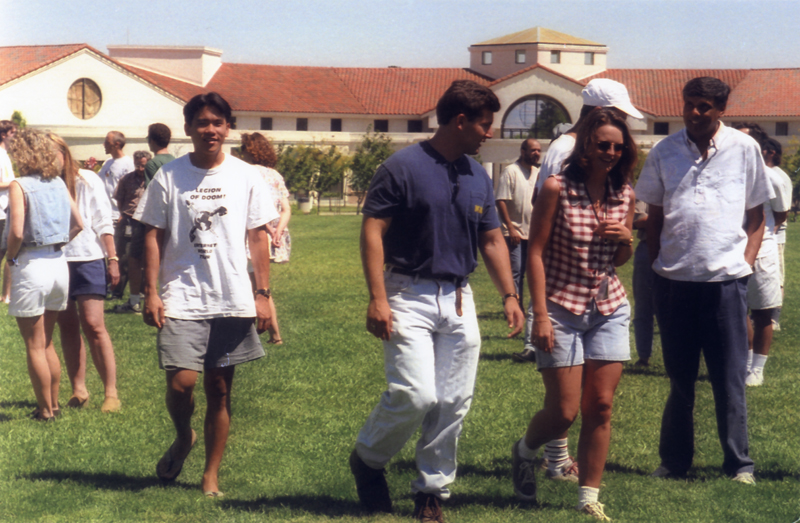
Memories: Apple ATG Summer Picnic, 1997

Thursday night, Carolyn & I went out with a number of close friends to celebrate her birthday.  Eric Cheng brought a very nice little present for us – a snapshot from the Apple Advanced Technology Group (ATG) Summer Picnic in 1997.

This snapshot is now the earliest known couple photo Carolyn & I have.  Friday, August 22, 1997.  At this point, we had been dating all of 12 days.

This is also, I believe, the very last Apple ATG Picnic, since this is also the year that Steve returned to Apple and officially disbanded ATG.

So a little nostalgia on the blog tonight.  Big thanks to Eric for the great picture.

The Secret to Reformatting a Western Digital WD 1TB My Book External Hard Drive

Little tidbit.

When you buy a Western Digital (WD) 1 TB My Book External Hard Drive, they usually come formatted for Windows using FAT32. Of course, if you are using it with a Mac, then you’ll want to reformat it using Mac OS Extended (HFS+).

The problem: When you try to reformat in Disk Utility, you’ll get a very cryptic error that says that there was an unknown error with the partition map.

The solution: If you go to the partition map and click the “Options…” button, you’ll be able to select which scheme to use for the boot records. It turns out, if the boot record scheme is set to “Master Boot Record”, you will not be able to format it as Mac OS Extended. Flipping it to GUID or Apple Partition Map will work.

Once you get to that magic dialog, it’s pretty clear what to do. Why Apple doesn’t communicate this error intelligibly when you attempt to format I don’t know.

In any case, there is an Apple Discussion Board thread that saved the day for me. I’m posting it here just in case it saves the day for someone else.

I’m now ready to try out Apple Time Machine for the first time…

Update (12/29/2008): It’s amazing, but this continues to be one of the most popular posts on this blog.  Everyone seems to have this problem.  Interestingly, it’s not unique to Western Digital drives.  I find that I need to do this with Maxtor and Seagate Free Agent drives also.  I just did this with the new Seagate FreeAgent 1.5 TB external.  Works like a charm…